Trip
-
Q: What is a “commute” trip?
incenTrip considers trips from home to work and work to home as commute trips. If you need to visit additional places during the trip (otherwise known as non-commute trips) or stops along the way, it is acceptable. In such cases, only a segment will be identified as a commute trip and the remaining part of the trip will be considered as a non-commute trip (see the example below). The user should plan trips on these different segments separately.

-
Q: Can I get rewards for telecommuting?
The current incenTrip reward program does not reward telecommute trips.
-
Q: Can I customize my multimodal trip option?
incenTrip currently does not support customization of your multimodal trip.
-
Q: How do I plan a home-to-work trip when I need to meet
someone at a Park and Ride Lot to rideshare?
You could plan two trips: one from home to the P&R lot and the other from the lot to work but only the second trip will be considered as a commute trip.
-
Q: How to delete a preplanned (saved) trip?
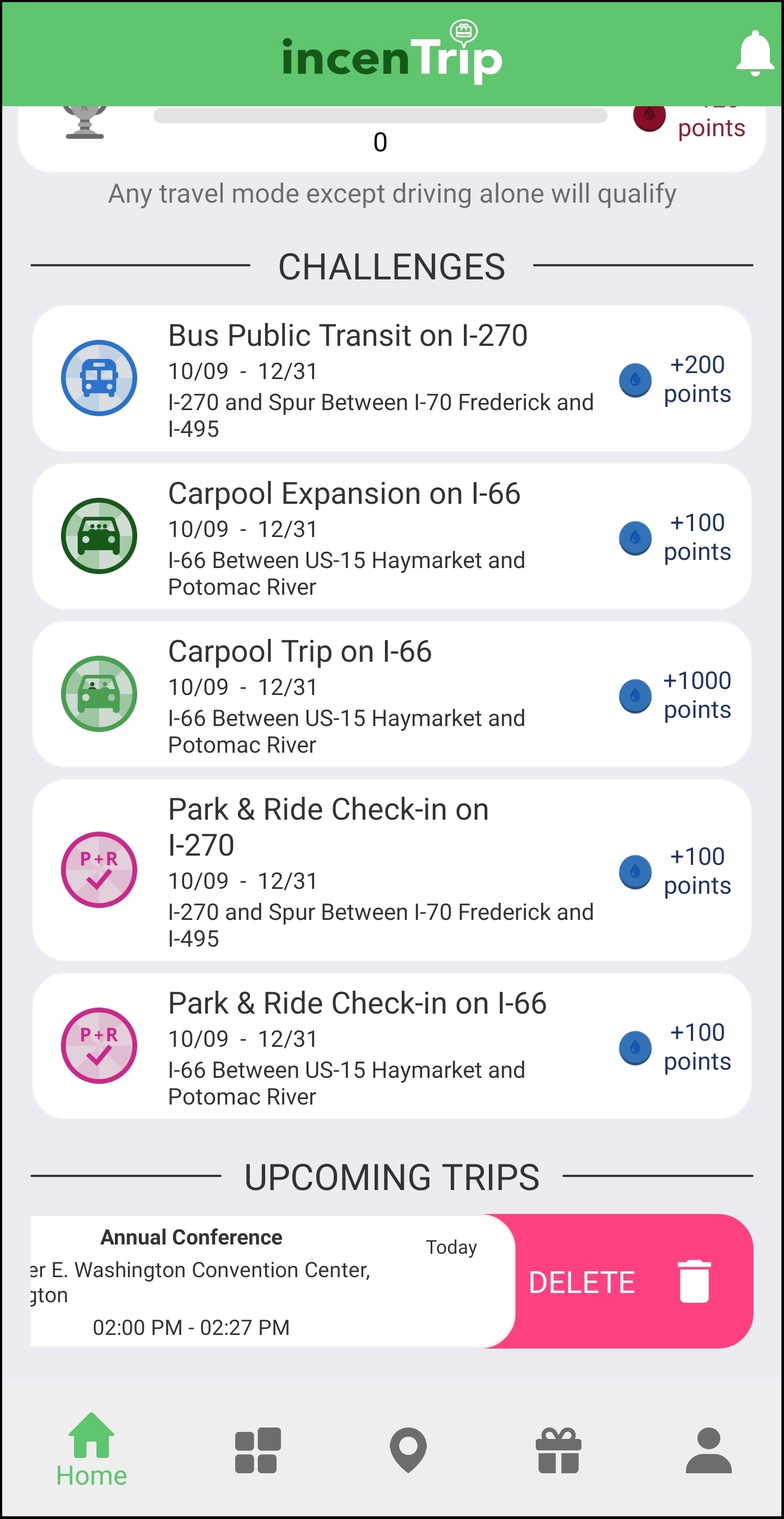
You could view your preplanned (saved) trips in “Upcoming Trips” on the incenTrip home page. Find the unwanted trip(s) and swipe left on the trip to delete it. The trip will expire and disappear 15 minutes after the planned departure time.
-
Q: What are the different lines and circles on the map after I
started a trip?
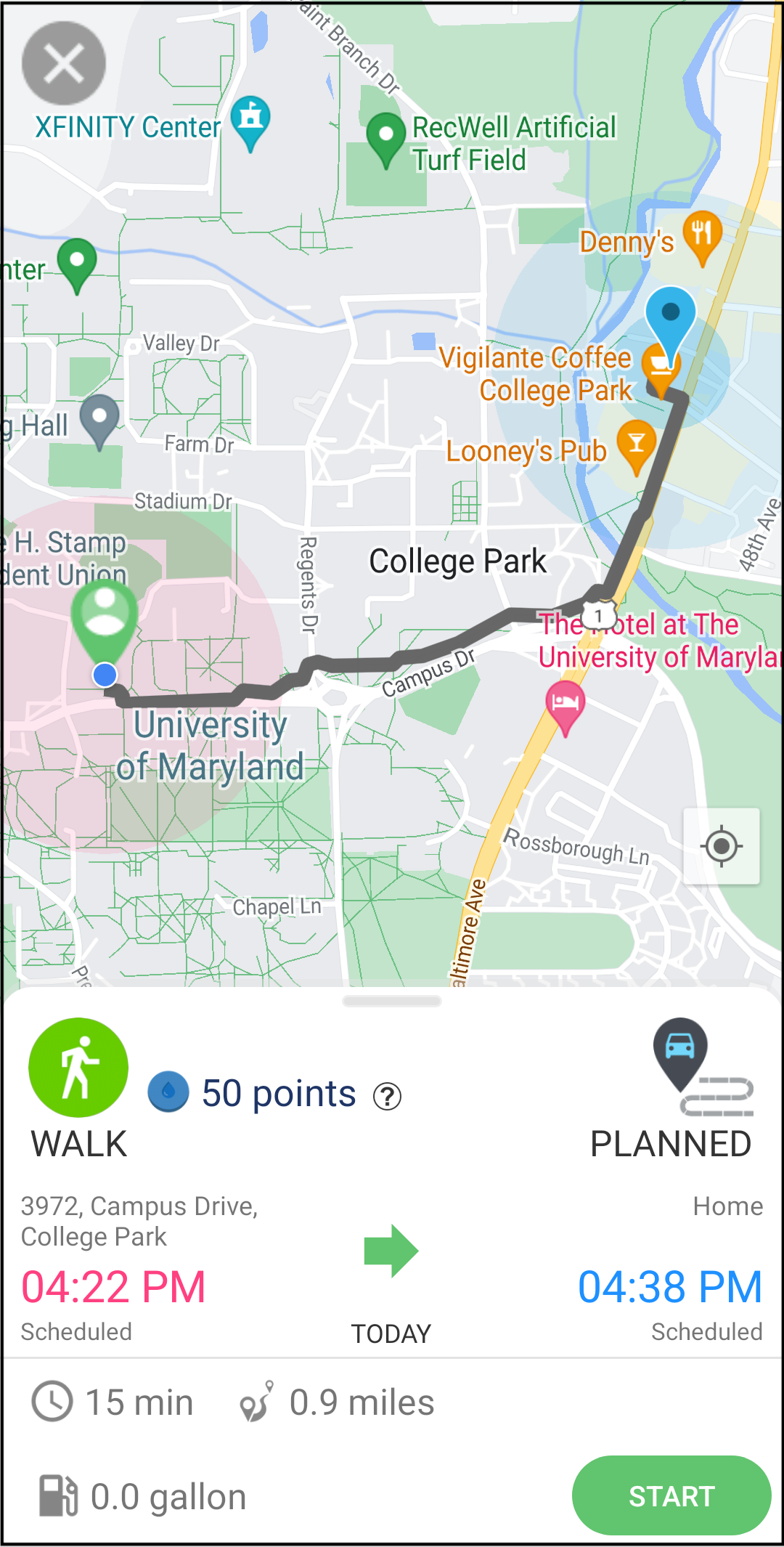
The grey lines denote the route planned by incenTrip and the green lines denote the actual route taken by the user. The red circle at the origin location is the area in which the user can start the trip. The big blue circle at the destination location represents an area that the user can finish the trip manually. Once the user is within the area of the small blue circle, the trip will be completed automatically.
-
Q: Does incenTrip provide navigation?
incenTrip currently does not support navigation. Please use another app for navigation.
-
Q: Why doesn’t the app help me route around congestion or
crashes or help me to find the best route if traffic changes
along my route?
The app is a pre-decisional trip planning tool, allowing you to earn points based on making smart travel decisions that help relieve congestion; however, it is not a route navigation tool. You should use a different route navigation app and leave the incenTrip app running in the background along your trip.
-
Q: If I made a stop between my home and work locations, will
the trip still be recorded as commute trip?
If you utilize the background trip logging module, incenTrip will identify these trips as two trips: one is from your home to the stop and the other from the stop to your work location. If you want to plan the trips yourself, you only need to plan a trip for the last segment: on your way to work, it should be from the stop to your work location; on your way home, it should be from the stop to your home address. This trip will be identified as a commute trip.
-
Q: How much flexibility is allowed for a planned trip?
incenTrip will consider the length of your entire trip and the length of your detour. If the detour is small enough, you will earn the same points as promised.
-
Q: I preplanned a trip, but it was not recorded. Why is
that?
You may forget to confirm the start of the preplanned trip. When the preplanned departure time is close, you will receive a notification for you to access the trip. You could also access the trip(s) under “UPCOMING TRIPS” on the incenTrip home page. After selecting the trip, you need to confirm the start of the trip (by clicking on green “Start” button).
-
Q: I took a trip by bike and forgot to plan it in the app
before taking it. What can I do?
It might have been captured by the background trip logging module if your location sevice was turned on and if the location permission for incenTrip is set to "Always". You could check if the trip was recorded in "My Trips" the next day. If you did not have your trip logging on in the background, the trip was likely not recorded.
-
Q: Why was my trip canceled automatically?
incenTrip will automatically cancel a trip if the trip continues for a long period of time without reaching the destination. The trip would be automatically canceled if the trip has not been completed within 3 hours of the estimated travel time. For example, if the estimated travel time of a trip is 30 minutes, it will be canceled automatically in 3 hours and 30 minutes after starting the trip.
-
Q: How to take a rideshare trip with my friends?
Step 1. The driver plans and starts a rideshare trip.
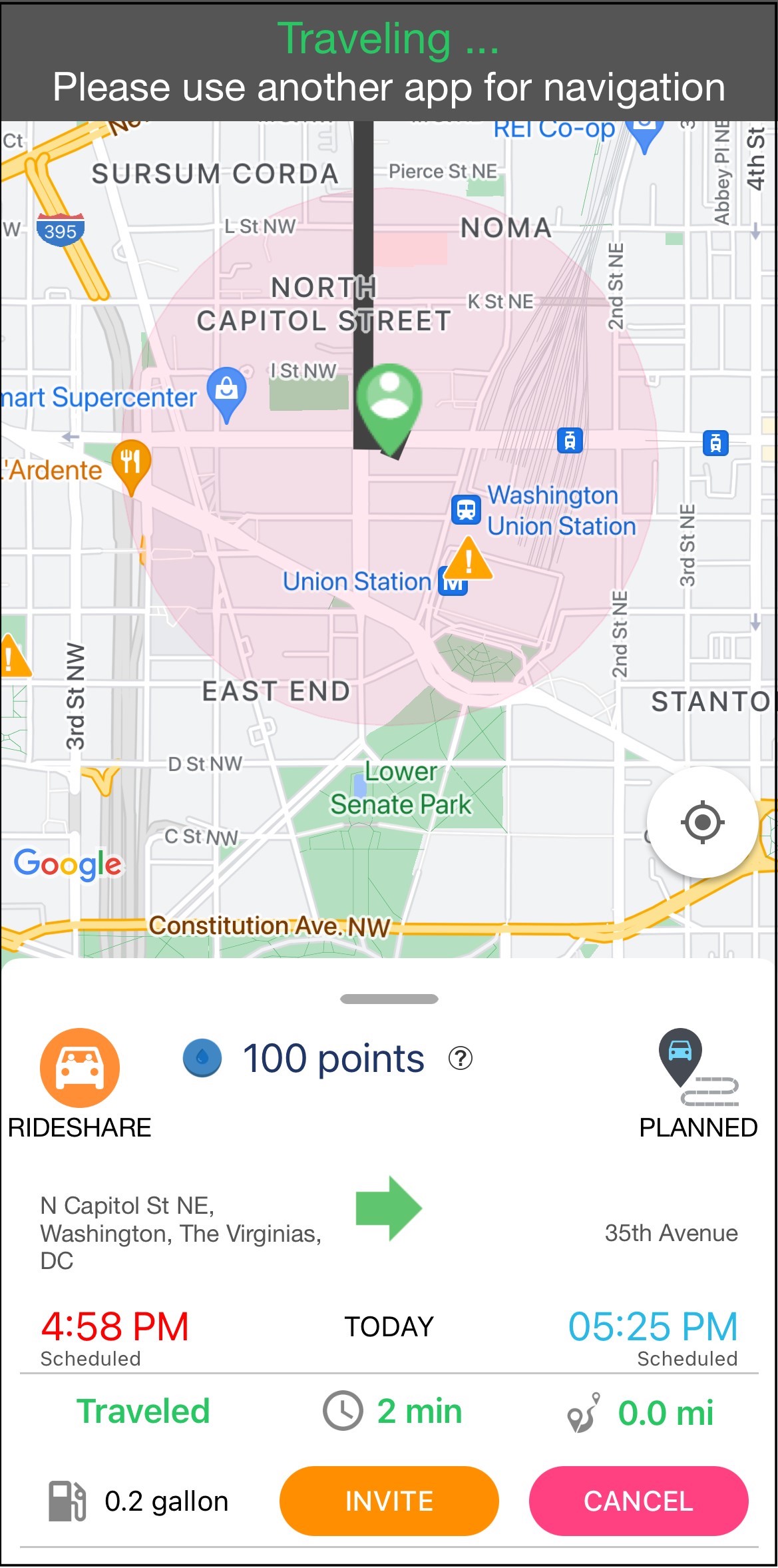
Step 2. Click the INVITE button to invite friends while picking them up.
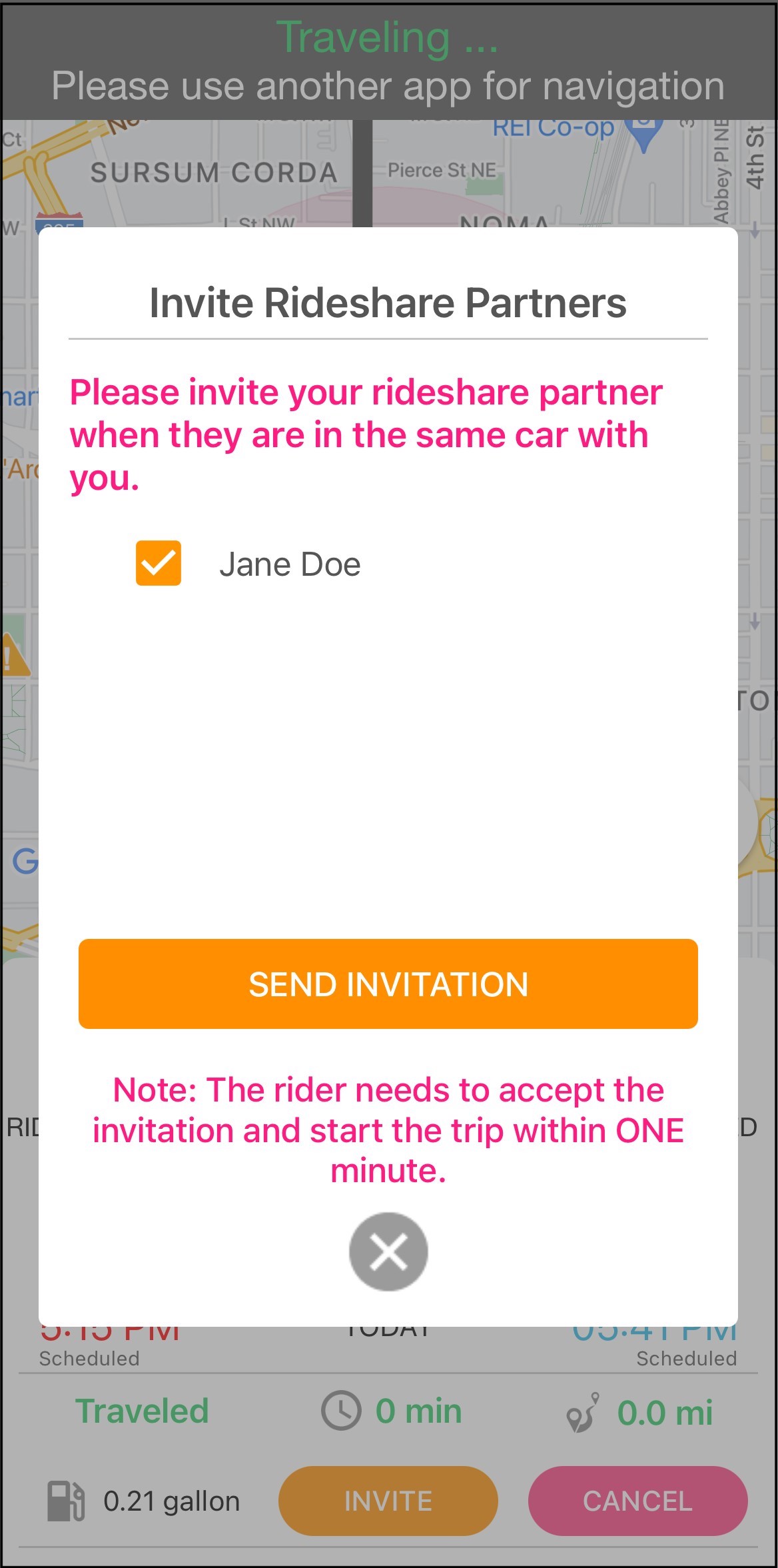
Step 3. Your friend will receive a rideshare invitation on the main screen. They must accept the invitation within ONE minute. Click the ‘ACCEPT’ button to open the rideshare trip page.
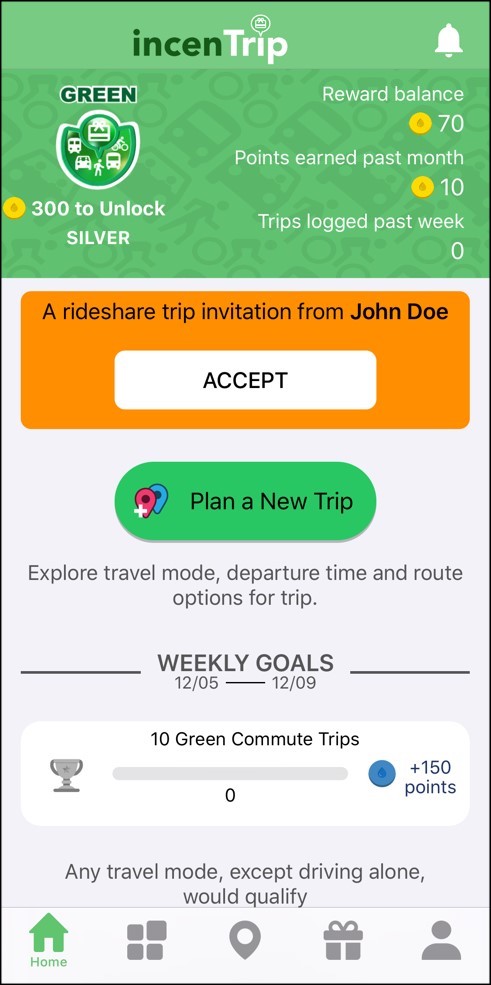
Step 4. Your friend selects his/her destination location which could be different from yours and starts the trip. Click the ‘Start Rideshare Trip button’ to search the rideshare option.
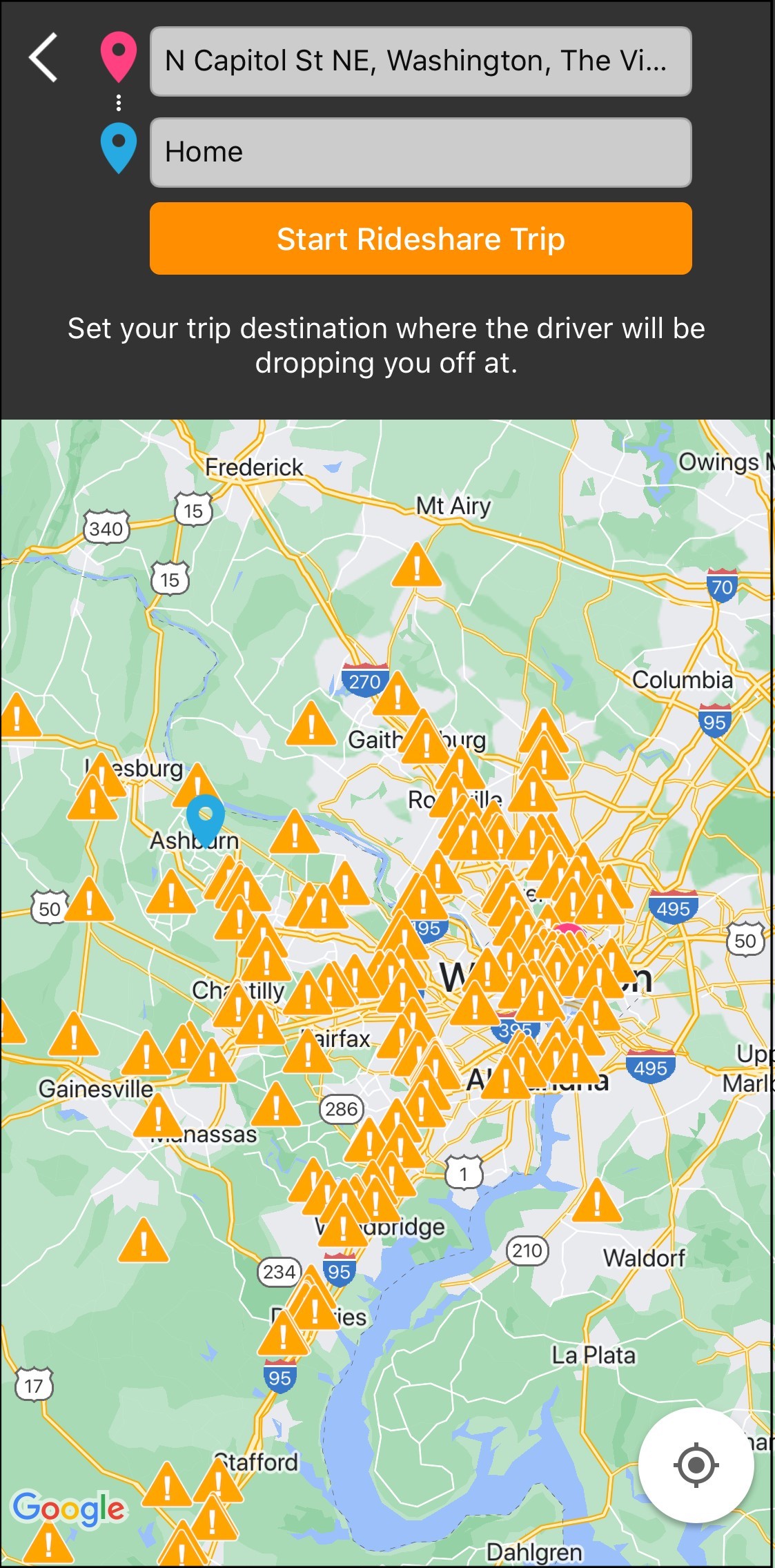
Step 5. Your friend then clicks the START button to join the rideshare trip. All the rideshare partners must be in the same vehicle.
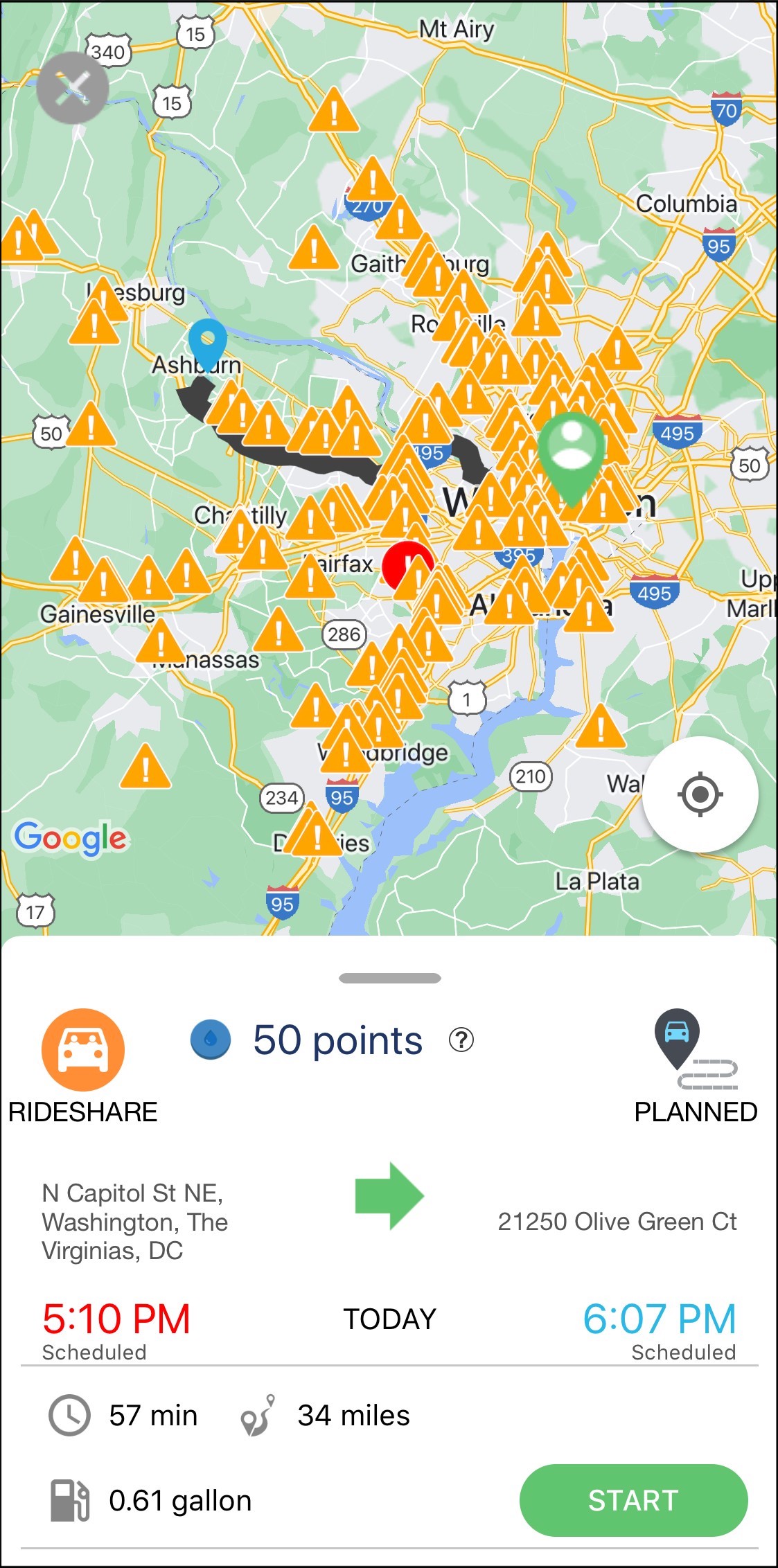
Step 6. Once all the riders and the driver finish their trip, the trip incentive points will be added to all the rideshare partners who finished the trip successfully.
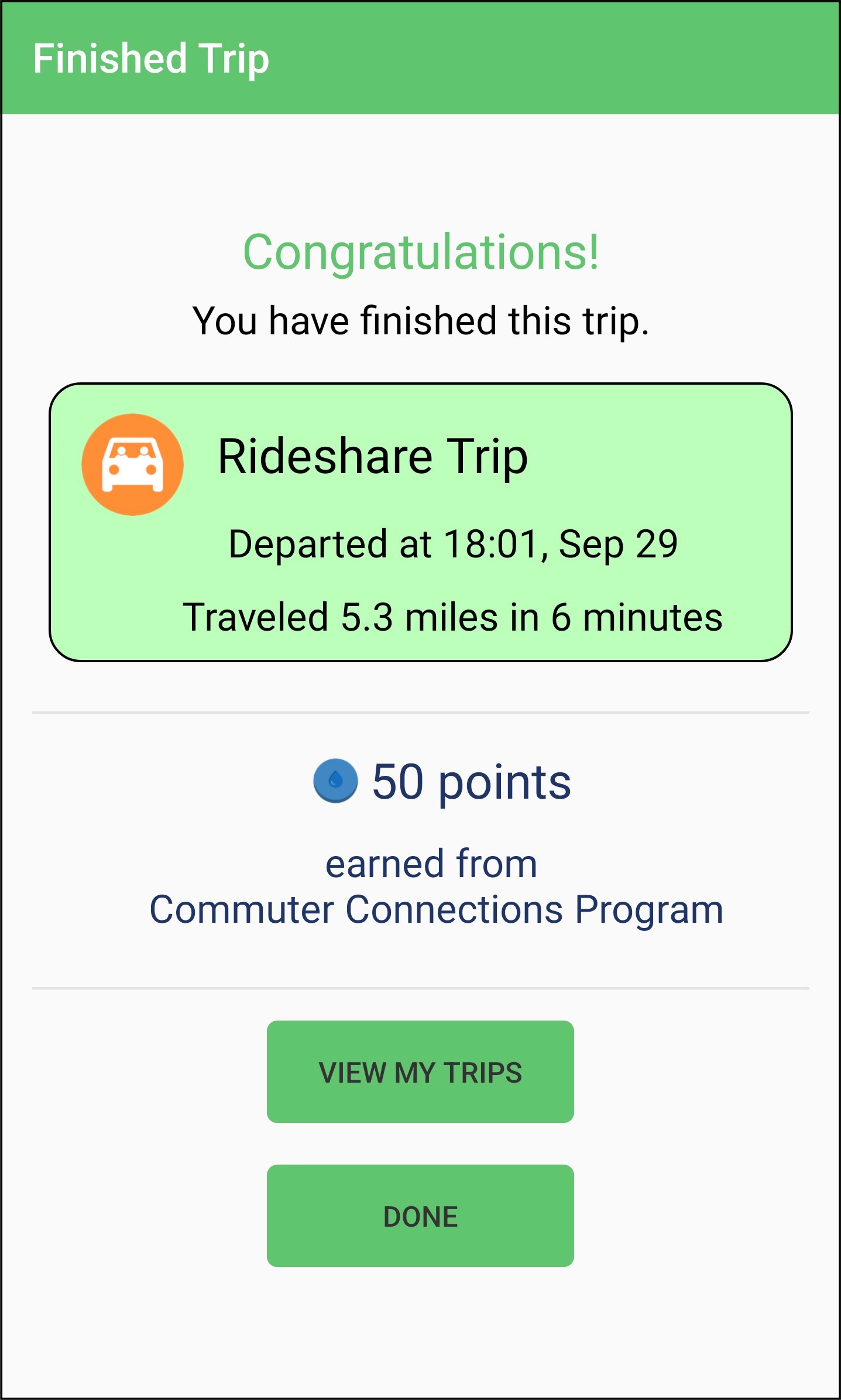
Rideshare partners will not be able to earn the points in the following cases:
- The driver travels alone.
- The trip is cancelled.
- The riders do not travel in the same vehicle.
- Non commute trips will not be able to earn points.
-
Q: How to take a Flex trip?
After joining the Flextime Rewards Program, if your selected corridor is experiencing significant congestion at your selected departure time, you will receive a flex trip notification. The flex trip options will appear on the main screen. You can select any of the options to start the trip and earn the flextime rewards.
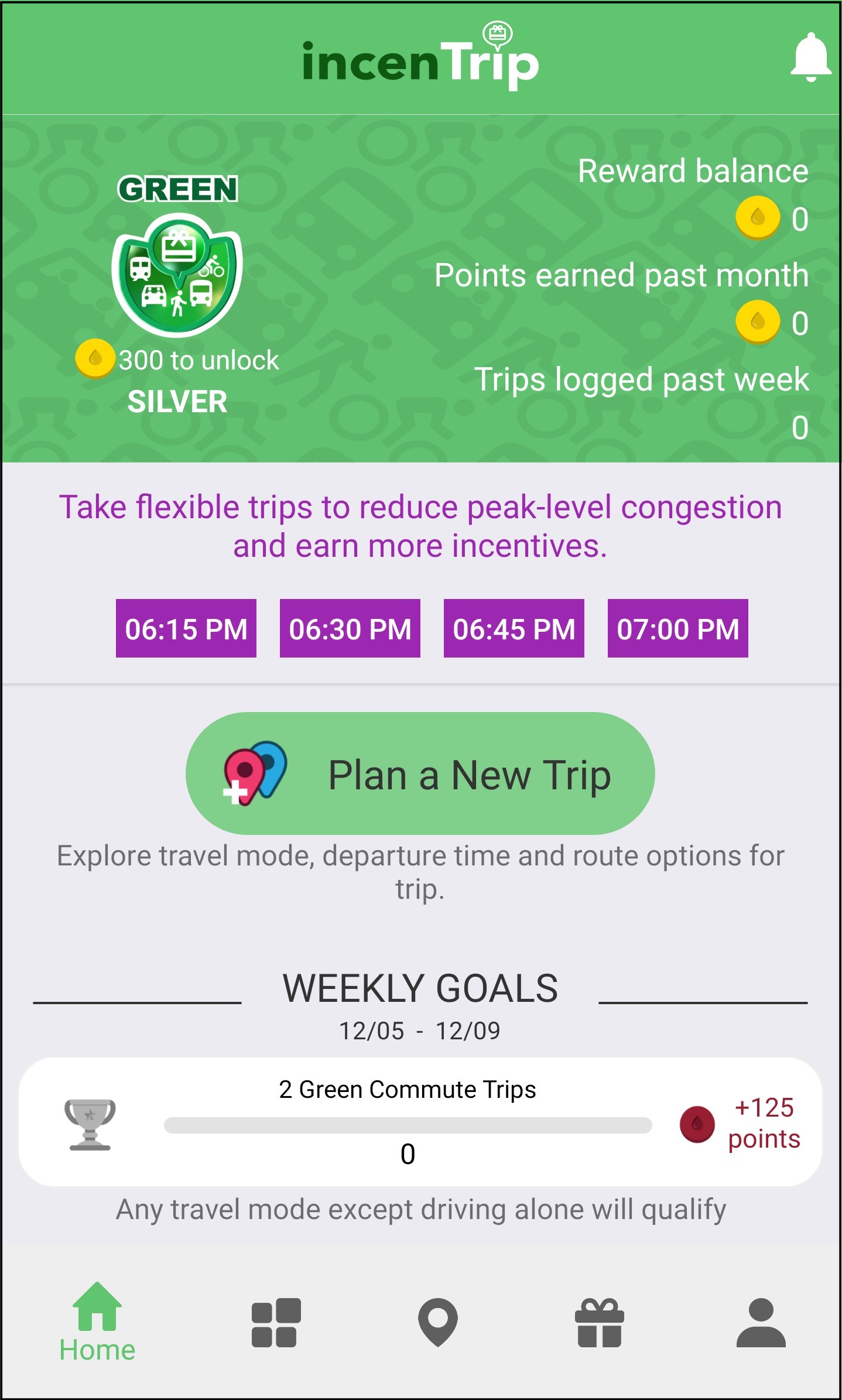
Rewards Program
-
Q: How to join the Flextime Rewards Program?
Only users with Commuter Connections account can join this program.
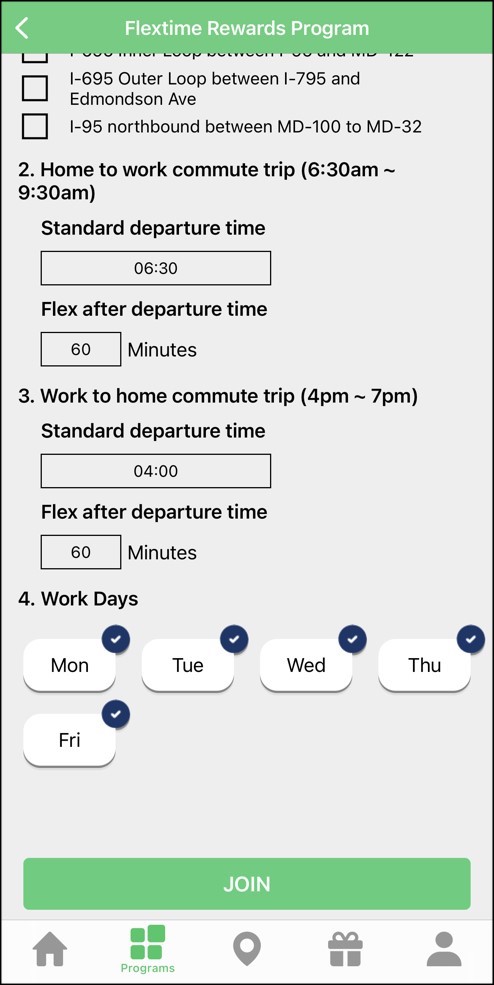
Select Flextime Rewards Program from the Programs page and click on the Join button.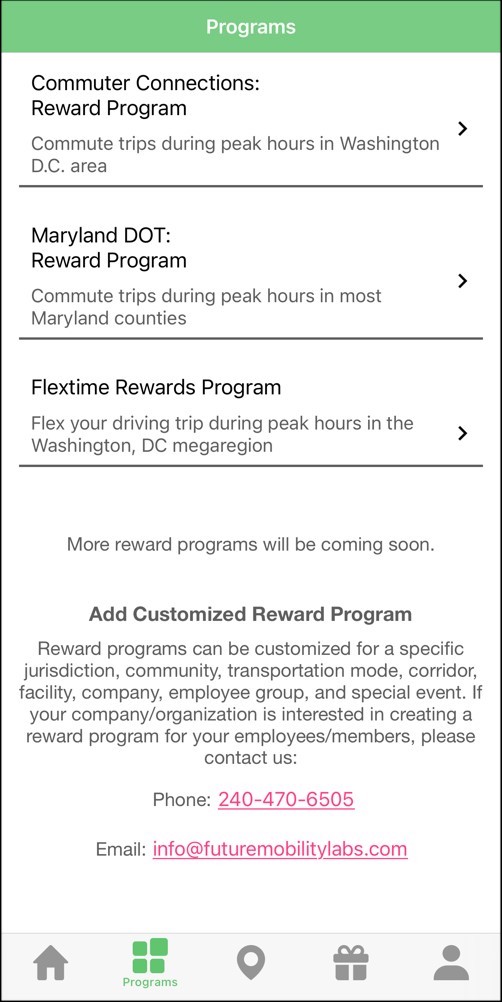
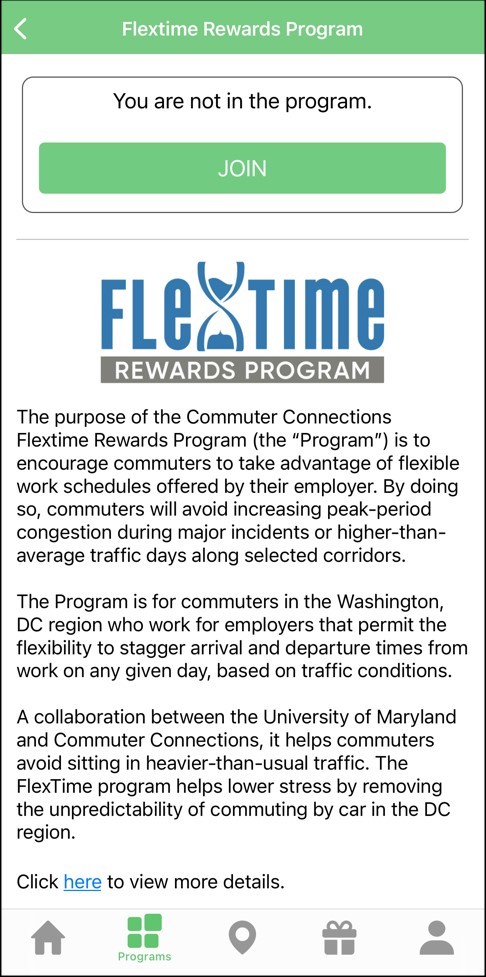
Choose the corridors that you travel in your daily commute, set your morning and afternoon departure time, flex window and your work days. Then click the JOIN button.
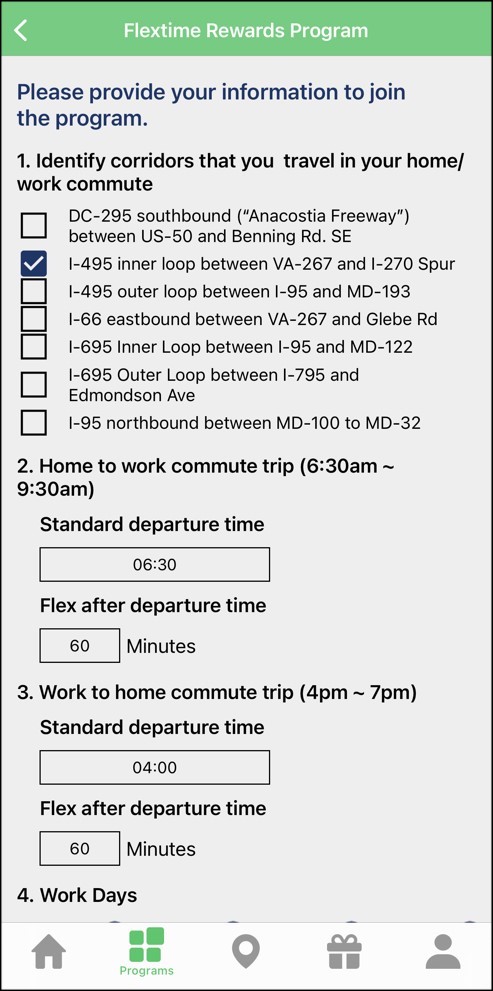
-
Q: How to accept a corridor challenge?
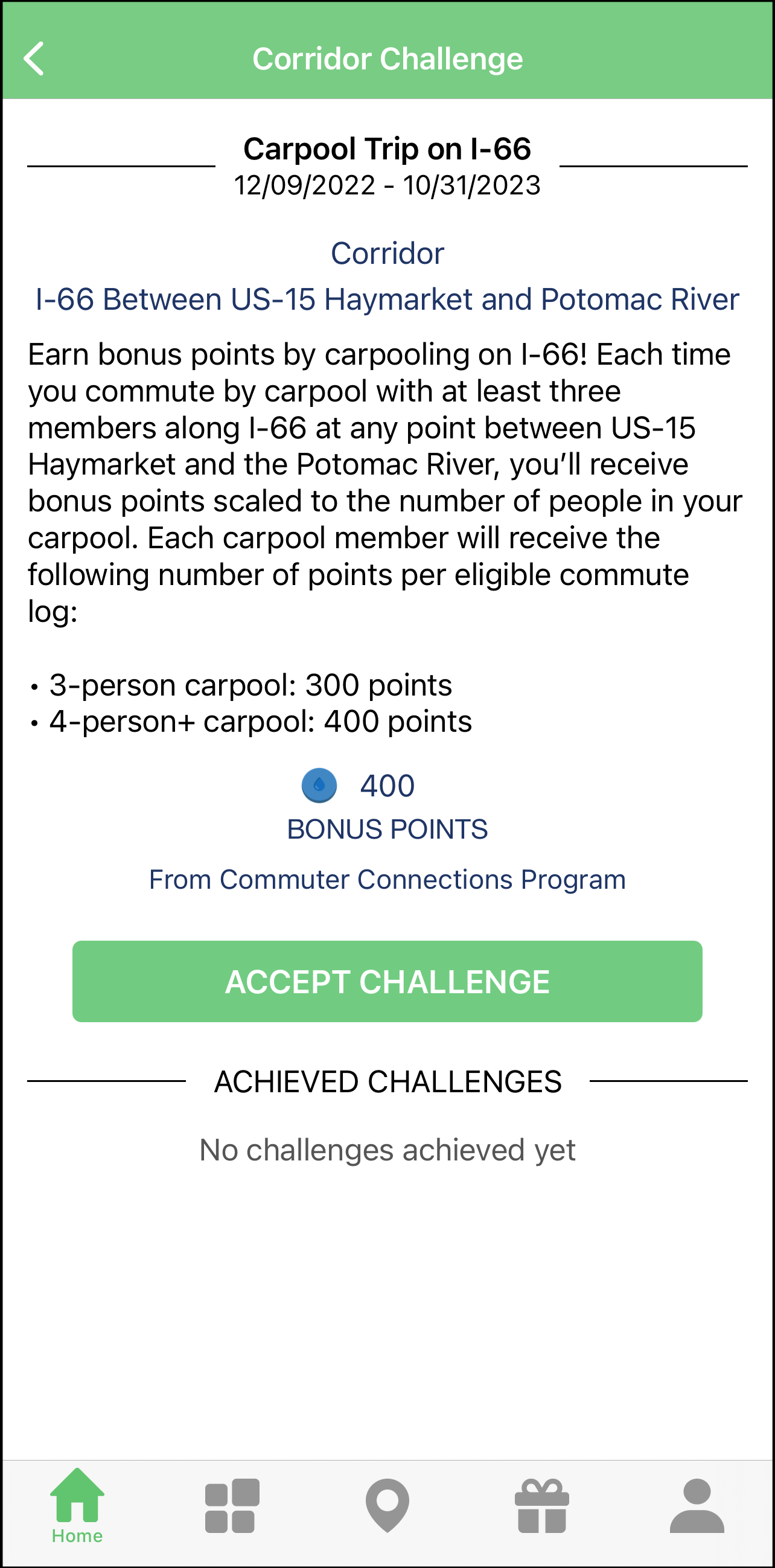
After selecting the corridor challenge from the main screen, the challenge can be accepted using the ‘Accept Challenge’ button in the challenge detail screen.
-
Q: How to check in at a park and ride location?
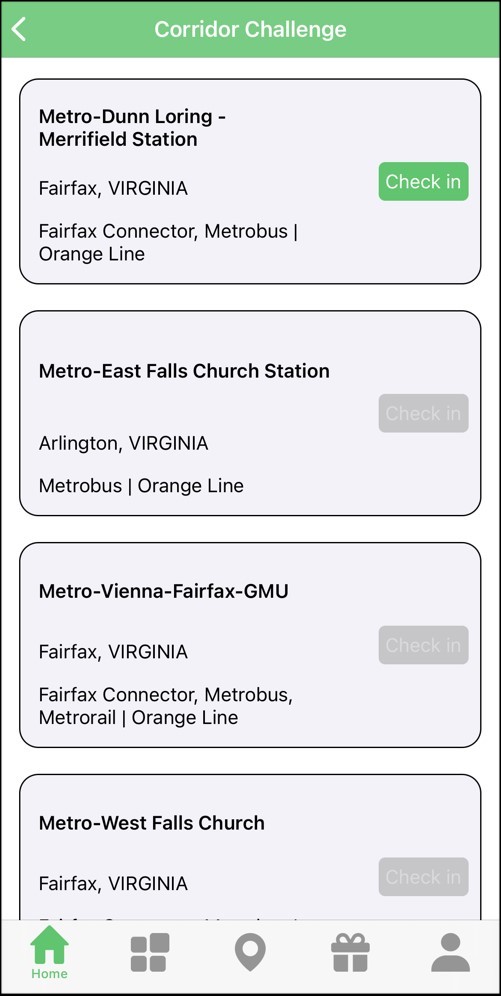
Once you have arrived at any of the park and ride locations of a corridor challenge, the ‘Check in’ button will be activated (Green color). Click the button to finish the park and ride check in challenge.
-
Q: How to achieve a trip-based corridor challenge?
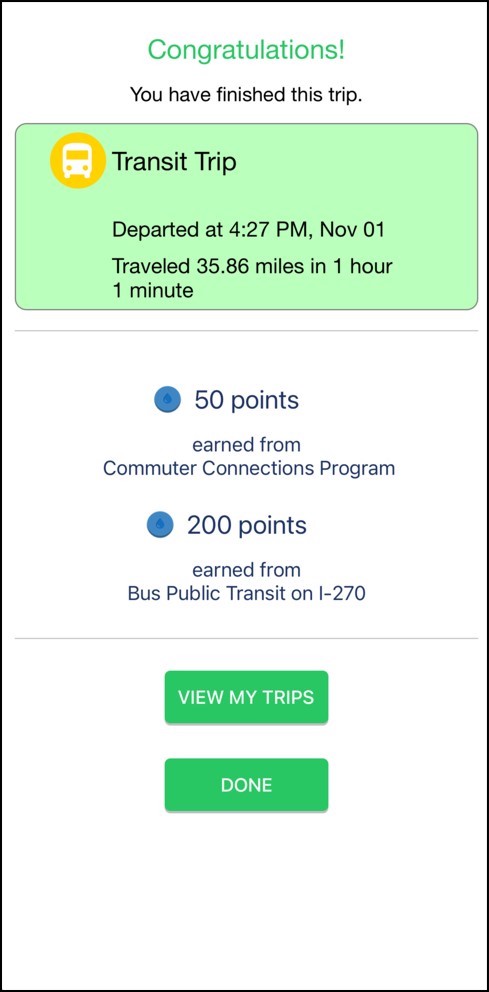
For corridor challenges which require taking trips, you need to take a commute trip, travel along the corridor and finish the trip to achieve the challenge. For example, finish a commute transit trip on the I-270 and achieve the ‘Bus Public Transit on I-270’ challenge to earn 200 points.
Incentives
-
Q: How do you calculate the points to be rewarded?
incenTrip evaluates the origin, destination, departure time, purpose (commute or non-commute) and available trip options to allocate the points.
-
Q: How do I earn points from trips with the app?
To earn points, you could either plan a trip or utilize the trip logging module.
To plan a trip:- Type in or select your origin and destination and click on 'Depart Now' or 'Depart Later'.
- You will see three trip options based on your preference for travel mode. At the bottom of the page, you could click the button to 'See More Recommendations' to browse other trip options by mode, e.g. walk and bike, transit, and multimodal.
- After you determine the trip option you want to take, simply select it and click the green 'START NOW' button to start your trip. The app will track your trip and end it automatically when you arrive at your destination.
- If you clicked on 'Depart Later' in the first step, you could save the selected trip option with a trip name. When the preset departure time is approaching, you will need to open incenTrip app and confirm the start of the trip (by clicking on the trip in "Upcoming Trips" and then click the 'Start' button).
-
Q: How does the app issue points from different reward
programs?
You could find details regarding each reward program in the "Programs" section on the home page.
-
Q: The rideshare participants get different points. Why is
that?
The planned incenTrip rideshare trips require exactly the same origin and destination commute trip. Therefore, the trip purpose may be different for participants. To avoid this restriction, all the rideshare participants need to join the same rideshare pool and log the same rideshare trip in the background.
-
Q: When will points show up?
For planned trips, usually, both trip records and points will be posted immediately.
-
Q: Will the points expire?
It is recommended that you redeem your points as early as possible. While incenTrip points currently don’t expire, your accumulated points of a program may be erased due to the program being suspended or ceased. We will notify you of any policy changes.
Miscellaneous
-
Q: How to manage (e.g., add and delete) home, work, and
favorite locations?
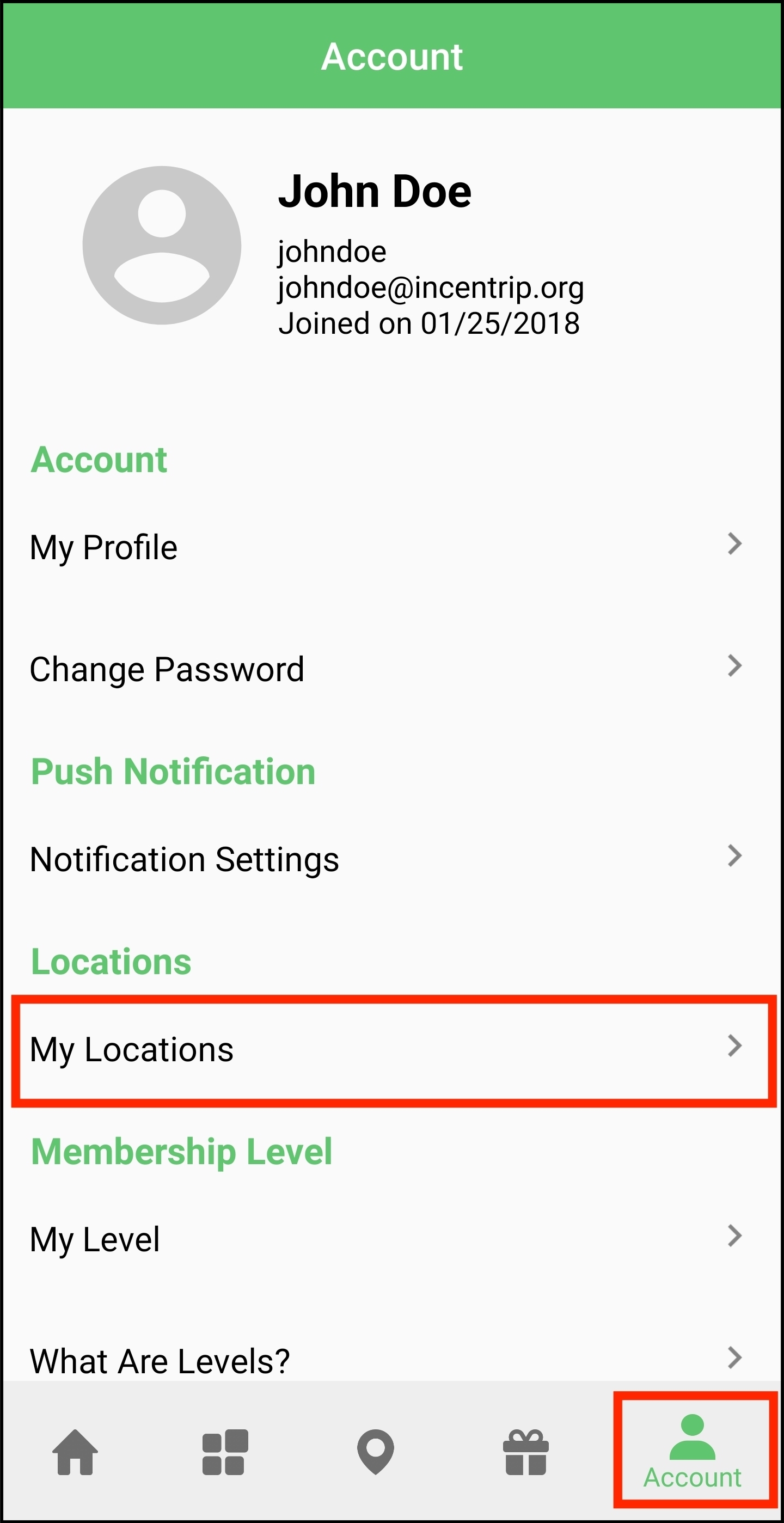
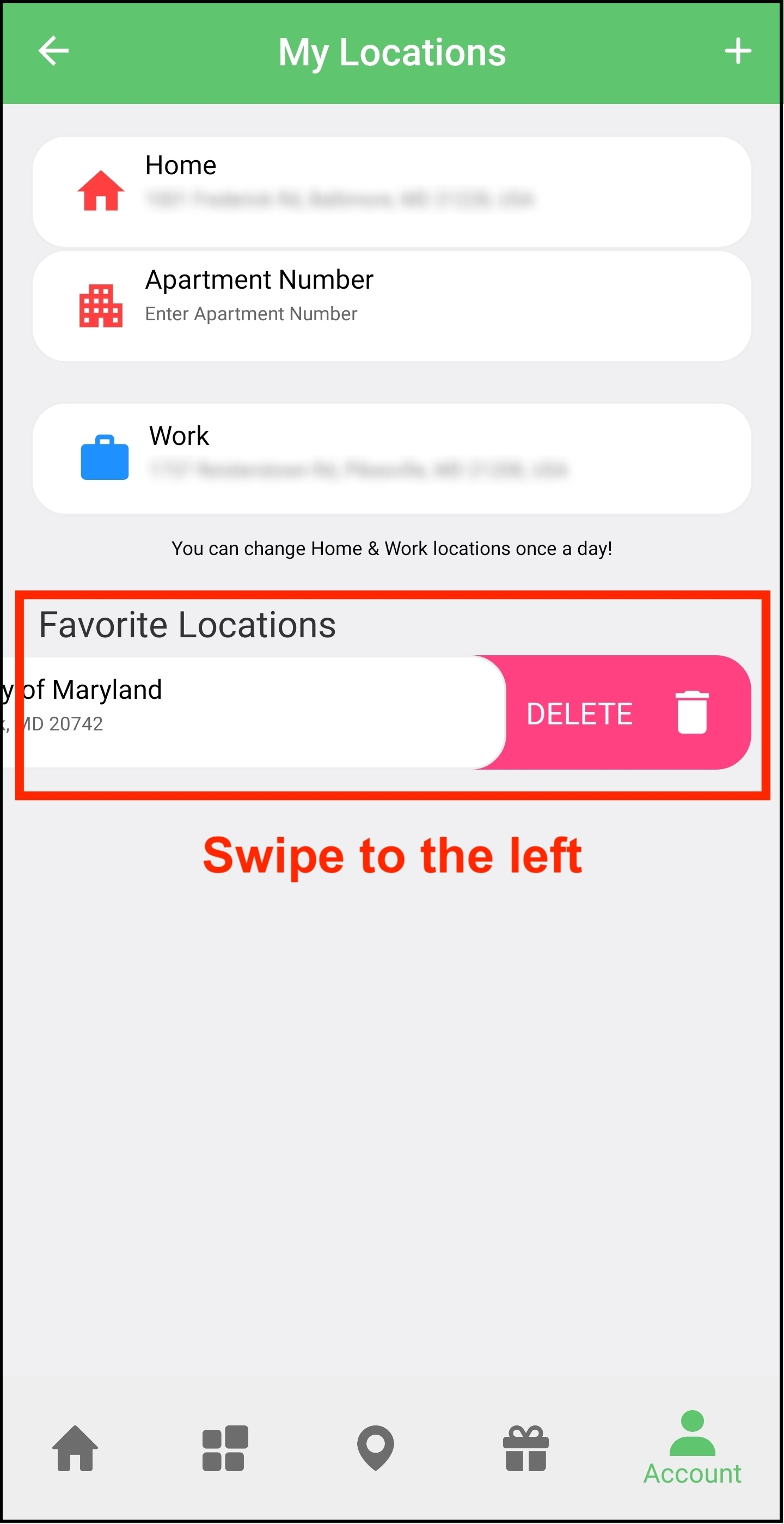
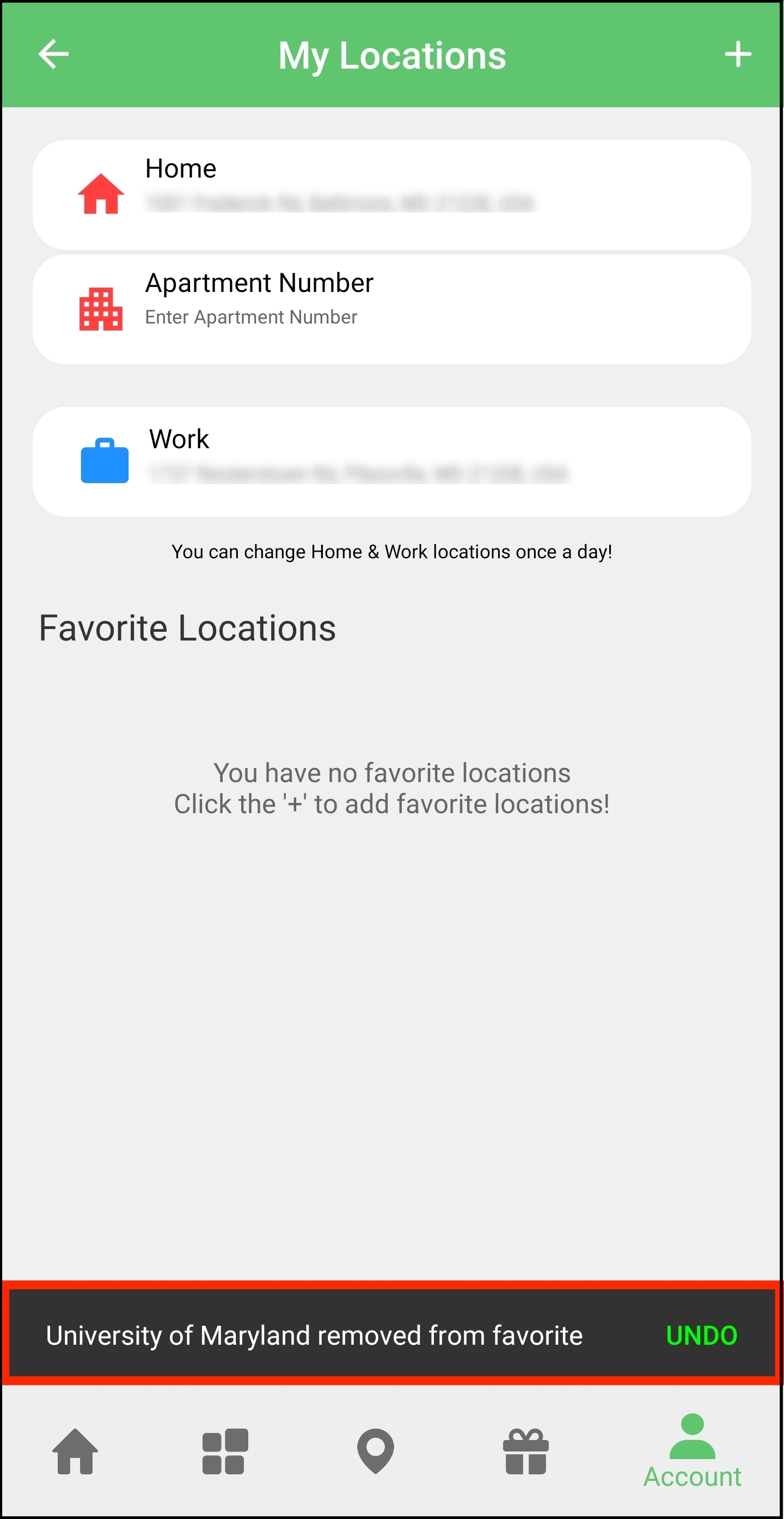
You could manage your home, work and favorite locations in "My Locations" on the Account page. You can only change Home & Work locations once a day. Favorite locations could be deleted by swiping left on the location. You can undo the deletion by clicking the UNDO button at the bottom.
(see the screenshots below).1. Visiting “Account” → “My Locations”.
2. Delete one favorite location by swiping it to the left.
3. Click UNDO to cancel deleting the location
-
Q: Can I set up two Work addresses?
incenTrip currently does not allow multiple work addresses, however, you can change your work trip once every day to adjust to your daily work location address.
-
Q: What to expect after redeeming a check in the Commuter
Connections’ Check Program?
The request will be forwarded to the program sponsor and the processing time is based on their policy. You may receive an email directly from the program sponsor to verify your mailing address. After the request is approved and verified, you will receive the check by mail.
-
Q: What trips will be counted towards the weekly goals?
The green* work-related commute trips during peak hours would count towards the weekly goals. In addition, a maximum of two green work-commute trips per workday (one to work and another to home) would count towards your weekly goals.
* The green modes include every mode except for driving alone. -
Q: For the Android app, it keeps showing a notification,
“Earning Points”. What is it for?
incenTrip has a background trip logging function, which by default logs your trips automatically.The Earning Points notification will be shown when you start traveling. You can hide it in the device Setting by disabling Auto Trip Logging Service notification.